
Watch this Step-by-Step on How to Set Up Your New Fusion Tablet POS system for Your Laundromat
Before we get started on our Fusion tablet laundromat POS setup, lets make sure we have everything we need.
Materials:
- Fusion tablet with case attached
- Power cord
- Set of four screws
- Included screwdriver
- ELO stand with Visa mount
- Anker USB hub
- Magnetic card reader
- Epson TM-20IIIL receipt printer
- Printer power cord
- Roll of 72 millimeter paper
- USB to printer cable
- Cash drawer
Fusion Tablet Laundromat POS Setup:
- Test the Tablet: Plug the power cord into the tablet’s DC port (the center port). Press the power button on the top left of the tablet. If it doesn’t turn on, let it charge for five minutes before trying again.
- Attach the Tablet to the Mount: Locate the eight holes on the Visa mount (on top of the ELO stand) and match them with the eight holes on the back of the Fusion tablet. Use the four screws to secure the tablet to the mount, starting with the two center holes. Tighten the screws firmly, but be careful not to overtighten.
Plugging in the Fusion Tablet:
- Plug the power cord into the tablet’s DC port.
- Connect the Anker USB hub to the tablet’s USB 3 port (the blue one).
- Plug the magnetic card reader into the Anker USB hub. A green light should start flashing on the card reader to indicate it’s powered on.
Wash and Fold Receipt Printer Setup:
1. Connect the Printer:
- Plug the printer’s power cord into the appropriate slot on the back of the printer.
- Connect the USB cable to the printer’s USB slot and the other end (to be connected to the tablet later).
2. Load Paper:
- Open the printer’s front cover and locate the paper tray.
- Pull up the tabs on either side of the tray and insert the roll of 72 millimeter paper, ensuring it feeds from the bottom.
- Close the tray and the paper should automatically cut.
3. Connect the Printer to the Tablet: Plug the USB cable from the printer into any available slot on the Anker USB hub.
Laundromat Cash Drawer Setup:
1. Connect the Cash Drawer for the laundromat POS system:
- Identify the cable marked “printer” and connect it to the cash drawer.
- Connect the other marked end of the cable to the designated port on the back of the Epson printer (usually located near the power plug).
Laundromat Scale Setup:
1. Plug the USB cable from the scale into an available slot on the Anker USB hub.
Congratulations!
You have successfully set up your Fusion tablet, printer, cash drawer, and scale for your laundromat.
I hope this blog post has been helpful. If you have any questions, please don’t hesitate to contact Curbside Laundries and be sure to check out our blog for other quick step by step guides such as: Assembling the Curbside Laundries Razor POS System
In today’s fast-paced world, convenience reigns supreme. Customers expect efficient laundry services, and that translates to streamlined operations for your laundromat. Curbside Laundries understands this challenge, which is why we offer the innovative Curbside Laundries Razor POS system. This powerful tool empowers your staff and elevates your laundry service with a sleek design and intuitive interface. Don’t just take our word for it – follow this guide to set up your Razor POS system in minutes and unlock the potential of efficient laundry management!
Before You Begin:
- Ensure you have a compatible Razor POS system, TM30 printer, power cords, USB cables, cash drawer cable (optional scale with USB cable), and a paper roll for the printer.
Setting Up the Curbside Laundries Razor POS System:
1.Power Up:
- Connect the power cord to the DC adapter and plug it into the Razor.
- A green light on the adapter indicates a successful connection.
2.Connecting the Display:
- Locate the DC in Port on the Razor.
- Plug the 4-pin connector firmly into the port.
3.Checking Functionality:
- After plugging in, you’ll see lights turn on and hear a beep.
- The Curbside logo appearing on the screen signifies a successful startup.
Unveiling the Razor’s POS System Features:
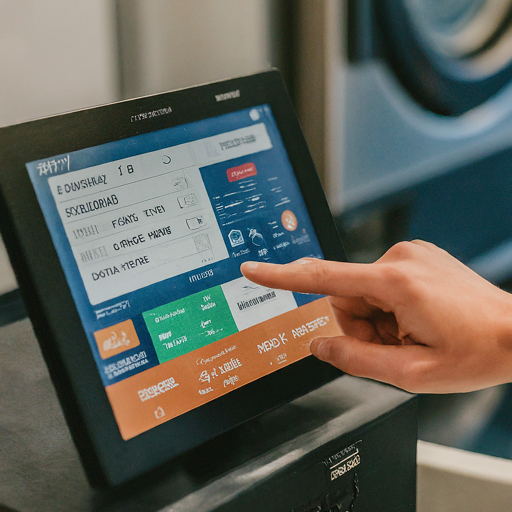
- Effortless Navigation: The Razor’s touch screen allows for intuitive and efficient operation, saving you valuable time (see image of Razor POS system touchscreen).
- Flexible Positioning: The screen rotates 180 degrees for optimal placement within your laundromat.
- Built-in Convenience: Process magnetic stripe cards for quick and easy payments, keeping transactions smooth.
- Versatile Connectivity: The Razor offers various USB ports for diverse functionalities, allowing you to connect essential peripherals.
Setting Up the TM30 Printer:
1.Unboxing Essentials:
- The printer kit includes the printer unit, USB cable, power cord, and paper roll.
- Connect the power cord to the DC adapter and plug it into the printer.
2. Accessing Ports:
- Remove the bottom cover for easy access to power, cash drawer, and USB slots.
3. Connecting the Cables:
- Match the labeled plugs on the printer with the corresponding connections:
- 3-pin 24 volt connection
- Printer USB cord (pentagon shape)
- Cash drawer cable (one-way, if applicable)
- Match the labeled plugs on the printer with the corresponding connections:
4. Paper Loading:
- Lift the tab to open the printer.
- Ensure the paper feeds from the bottom and load the paper roll.
- The printer will automatically cut a test sheet.
5. Connecting to Razor POS System:
- Plug the USB cable (one end) into a free USB slot on the Razor.
Cash Drawer Connection (Optional):
1. Locate the Slot:
- Find the labeled cash drawer slot on the Razor.
2. Connect the Cable:
- Plug the cash drawer cable (correctly labeled end) into the cash drawer slot.
3. Test the Drawer:
- A satisfying snap should confirm a secure connection.
Connecting the Scale (Optional):
1. Power Up the Scale:
- The scale doesn’t require a separate power cord.
2. USB Connection:
- Connect the USB B cable to the designated slot on the scale.
- Plug the other end of the cable into a free USB slot on the Razor.
Congratulations!
You’ve successfully set up your Curbside Laundries Razor POS system. This user-friendly system is ready to revolutionize your laundry experience by streamlining operations and boosting efficiency.
Additional Notes:
- The Razor POS system comes with pre-installed drivers for seamless operation.
- The USB connection offers a more reliable connection compared to Bluetooth.
We hope this guide empowers you to get started with your Razor POS system. If you have any questions, feel free to reach out to the Curbside Laundries support team.
Watch the driver’s list update in real time. Change the route on one device and the route is changed on all of your driver’s devices in real time. Add an order to the route from anywhere and the driver’s list gets updated too.


Setting Up the Curbside Laundries Razor POS System: